
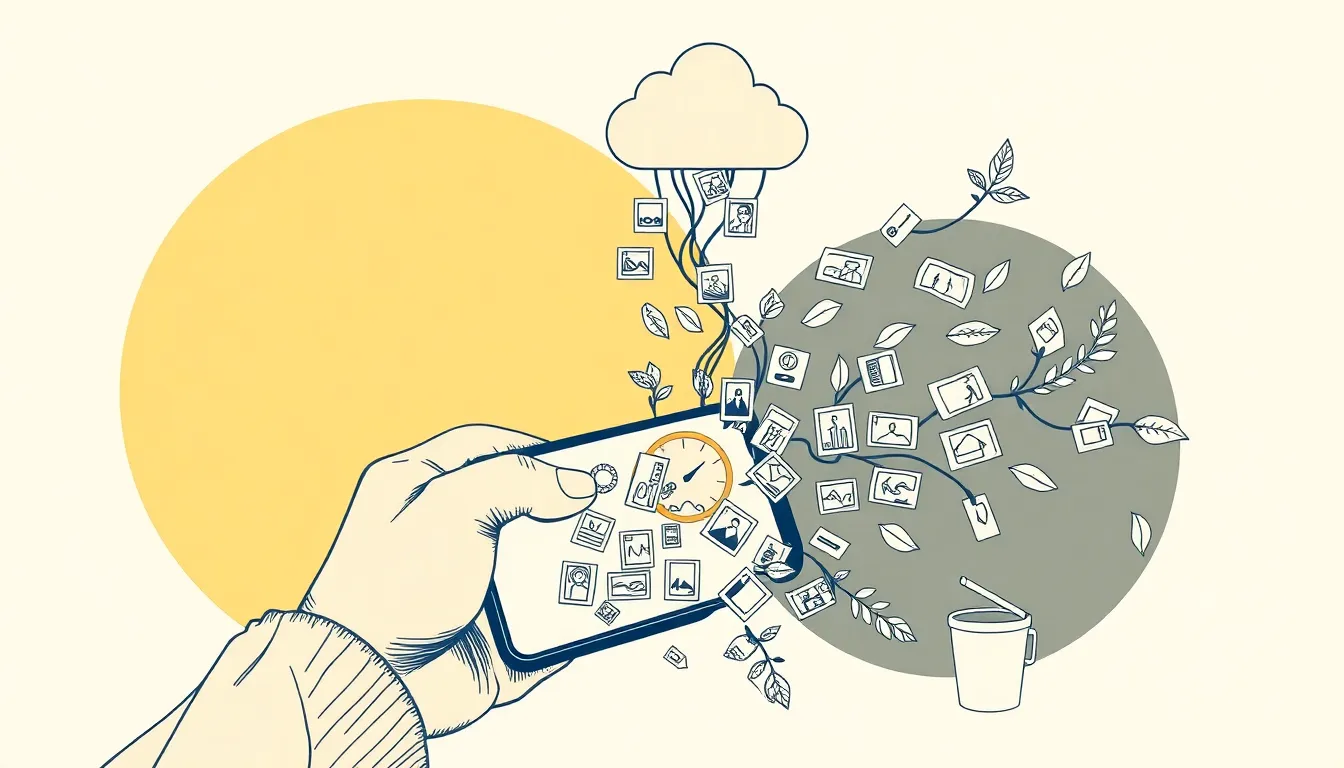
Running out of phone storage is one of the most frustrating tech problems we face. You go to snap a photo, download a new app, or update your phone, and suddenly you’re hit with that dreaded “Storage Full” notification. The good news is you don’t have to delete your precious memories or important files to reclaim space. With a few smart strategies, you can clear out gigabytes of clutter while keeping everything that truly matters safe and accessible. Let’s walk through practical ways to clean up your phone without losing a single important thing.
Start With a Complete Backup
Before you touch anything, protect your data. The smartest first step is creating a complete backup of your phone. This gives you a safety net if something goes wrong during cleanup, and it opens up options for removing files from your device while keeping them accessible elsewhere.
For iPhone users, iCloud offers automatic backups that include photos, app data, messages, and settings. Go to Settings, tap your name, then iCloud, and turn on iCloud Backup. Android users can rely on Google Drive for automatic backups that cover photos, contacts, calendar events, and app data. Both services offer free storage tiers, though you might need to upgrade for a paid plan if you have extensive photo libraries or large app collections.
Cloud services like Google Drive, Dropbox, or iCloud allow you to safely delete files from your phone while retaining access to them from any device with internet access. Once your backup is complete and verified, you can confidently move forward with cleanup knowing your important content is protected.
Clear Out Your Photo and Video Library
Photos and videos are usually the biggest storage hogs on any phone. A few minutes of 4K video can eat up several gigabytes, and if you’re like most people, you probably have thousands of photos taking up precious space.
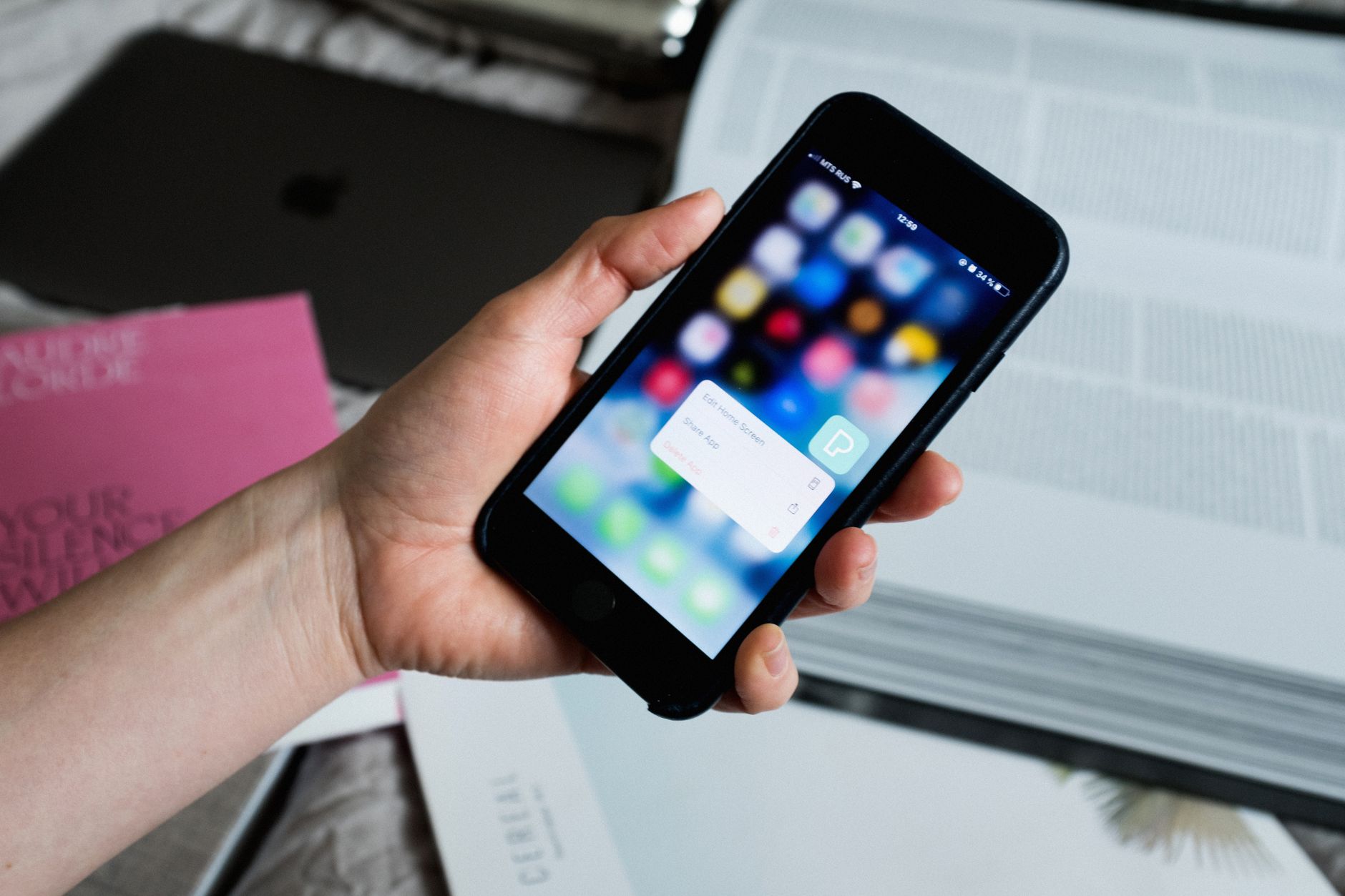
Many smartphones offer built-in optimization tools. iPhones have an “Optimize Photos” feature that stores full-resolution photos in iCloud and keeps smaller, optimized versions on your device to save space. You’ll still see all your photos in the Photos app, but they take up far less room. Android phones offer similar features through Google Photos, which can automatically back up your entire library and then help you remove the local copies.
Go through your camera roll and honestly assess what you need. We all have dozens of nearly identical shots from that sunset or concert, blurry accidents, screenshots we meant to delete months ago, and memes we’ve already shared. Delete duplicates, failures, and anything you genuinely don’t need. For photos you want to keep but don’t need instant access to, move them to cloud storage and delete the local copies. This single step can often free up 10 to 20 gigabytes or more.
Next Level: Enable your messaging app’s automatic deletion feature for old messages and media. Most messaging apps let you set messages to automatically delete after 30 days, 90 days, or a year. This prevents your message history from ballooning to multiple gigabytes while still keeping recent conversations accessible. You can usually find this setting in the app’s storage or data management section.
Tackle App Clutter and Cache
Apps multiply faster than we realize. That fitness tracker you used twice, the game you finished last year, the restaurant app from your vacation – they all add up. Uninstalling apps you no longer use can free up substantial storage space, and you can always download them again if you change your mind.
Check your phone’s storage breakdown to see which apps consume the most space. On iPhone, go to Settings, then General, then iPhone Storage. On Android, navigate to Settings, then Storage. You’ll see a list ranked by size that often reveals surprising space hogs.
Even apps you use regularly accumulate temporary files called cache. Clearing the cache for individual apps or your entire phone removes these temporary files without affecting the app’s functionality or your personal data within it. Your apps might load slightly slower the first time after clearing cache, but they’ll rebuild what they need. On Android, you can clear cache for individual apps through Settings, then Apps. iPhone users should check individual app settings, as iOS manages cache more automatically but some apps offer manual clearing options.
Streaming apps like Spotify, Netflix, or YouTube often cache downloads and temporary files. If you’ve downloaded content for offline viewing and finished watching or listening, delete those downloads. They can occupy several gigabytes without you realizing it.
Manage Messages and Attachments
Text messages might seem small, but years of conversations add up quickly, especially when they include photos, videos, and other attachments. Setting your phone’s messaging application to automatically delete old messages after a certain period can prevent them from accumulating and taking up significant space.
Both iMessage and most Android messaging apps let you configure automatic deletion. You can typically set messages to delete after 30 days or a year, keeping recent conversations while clearing old ones. This happens automatically in the background, so you don’t have to think about it.
Even if you want to keep your text history, you can manually delete large attachments. On iPhone, go to Settings, then Messages, then scroll down to view and delete large attachments. Android users can open their messaging app settings and look for storage or media management options. Delete old voice messages, videos, and images you’ve already saved elsewhere.
Review Downloads and Other Files
Your Downloads folder is probably full of files you looked at once and forgot about. PDFs, documents, images saved from websites, installation files – they all pile up over time. Open your file manager and sort downloads by size or date to quickly identify what can go.
Check for duplicate files too. Sometimes photos sync in multiple places or get saved twice accidentally. There are apps designed to find and help you remove duplicates, though you should review their suggestions before deleting to make sure you’re not removing something important.
Look at your offline content in music and podcast apps. If you’ve finished listening to downloaded podcasts or albums, remove them. You can always stream them again or re-download them later if needed.
Q&A
Will clearing cache delete my app data or login information?
No, clearing cache only removes temporary files that apps create to speed up performance. Your login information, settings, and personal data within the app remain untouched. You won’t lose progress in games, saved preferences, or account details. The app might just load slightly slower the first time after clearing cache while it rebuilds necessary temporary files.
How do I know what’s safe to delete from my phone storage?
Safe deletions include app cache, duplicate photos, downloads you’ve already used, old screenshots, apps you don’t use, and backed-up photos and videos. Never delete system files or app data unless you’re certain what they do. If your phone’s storage manager suggests removing something, it’s usually safe. When in doubt, back it up to cloud storage first before deleting from your device.
Can I recover photos after deleting them from my phone?
Yes, but only if you’ve backed them up first or if they’re still in your phone’s recently deleted folder. Most phones keep deleted photos in a trash folder for 30 days before permanent deletion, giving you a grace period to recover them. If you’ve backed up photos to cloud storage before deleting, you can access them anytime from your cloud service account and re-download them if needed.
How often should I clean up my phone storage?
A thorough cleanup every three to six months keeps storage manageable for most people. Set up automatic features like photo optimization, cache clearing, and message deletion to handle routine maintenance in the background. If you notice your phone slowing down, apps failing to update, or storage warnings appearing, that’s a sign to do an immediate cleanup regardless of when you last did one.
For Conclusion
Cleaning up your phone storage doesn’t mean sacrificing the files and memories that matter. With cloud backups, smart app management, and regular maintenance, you can keep your device running smoothly while ensuring nothing important gets lost. The key is being intentional about what you store locally versus what lives safely in the cloud.
Start by backing everything up, then work through photos, apps, messages, and downloads systematically. Enable automatic features wherever possible so your phone manages routine cleanup without your constant attention. You’ll be amazed how much space you can reclaim without losing a single important photo, document, or piece of data. A clean phone isn’t just about storage – it’s about keeping your device fast, responsive, and ready when you need it. Take an hour today to set up these systems, and you’ll enjoy the benefits for months to come.