
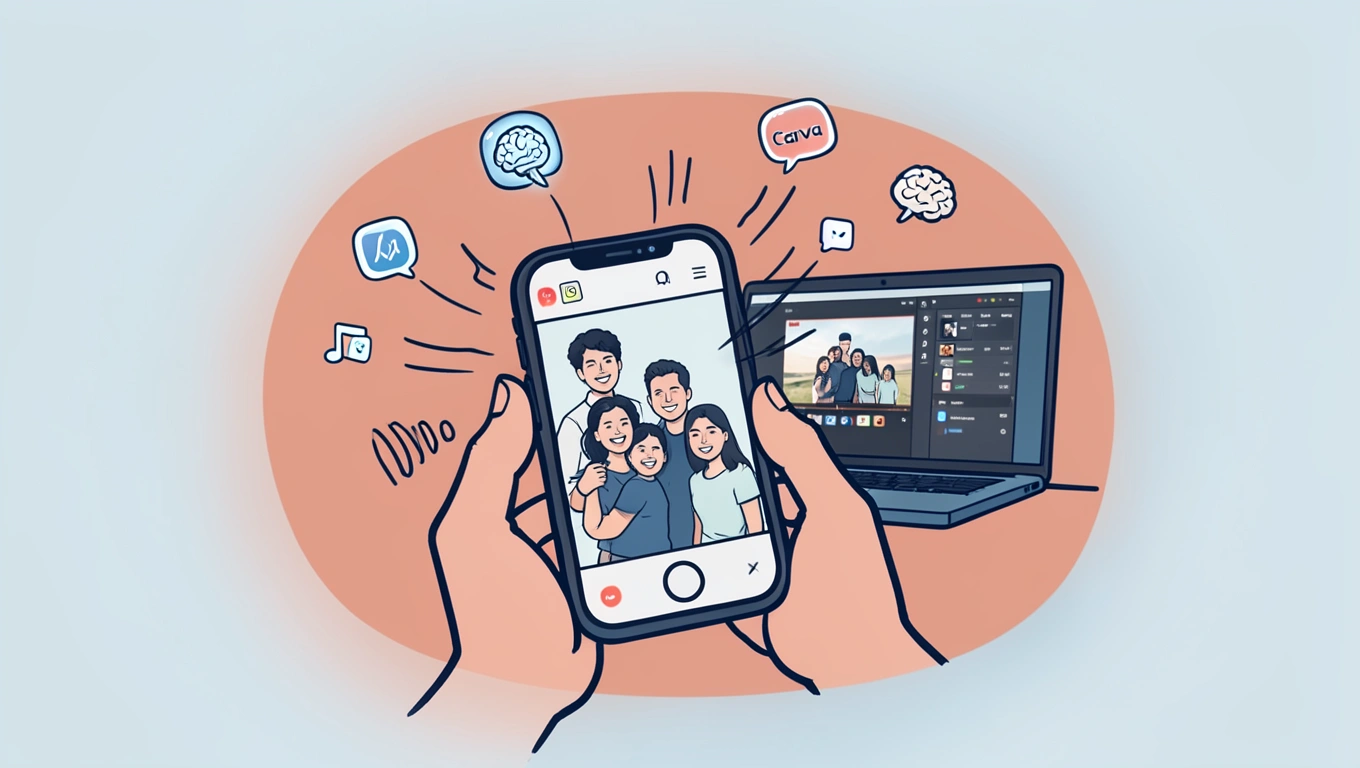
Creating short videos from your photos has never been easier, thanks to the rise of free AI-powered tools that handle everything from animation to sound. Whether you want to bring life to family snapshots, create engaging social media content, or simply experiment with visual storytelling, these platforms let you transform static images into dynamic video clips without needing professional editing skills or expensive software. The best part is that many of these tools run directly in your browser or on your phone, making video creation accessible to everyone. Let’s walk through how you can turn your photos into compelling short videos using some of the best free AI tools available today.
Understanding AI Photo-to-Video Tools
AI photo-to-video generators work by analyzing your images and applying motion, depth, and camera effects to create the illusion of movement. These tools use machine learning models to predict natural depth within your photo, identify subjects and backgrounds, and then apply realistic camera movements like pans, zooms, and parallax effects. Some platforms go further by adding lighting adjustments, color grading, and even generating synchronized background music or sound effects.
The technology has improved dramatically over the past few years. Where early versions produced awkward, robotic movements, modern AI tools can create surprisingly smooth and cinematic results. The software examines elements like horizon lines, facial features, and object boundaries to understand the spatial relationships in your image, then applies motion that respects these natural constraints. This means your photos of landscapes can get gentle pans and depth-based movement, while portraits might receive subtle zooms and lighting shifts that feel professionally produced.
Most of these tools offer both quick automated options and customizable controls. If you’re in a hurry, you can upload a photo and let the AI make all the creative decisions. If you want more control, you can typically adjust motion speed, camera angle, duration, and effects intensity to match your vision.
CapCut: A Comprehensive Free Option
CapCut stands out as one of the most feature-rich free options for creating videos from photos. Owned by ByteDance, the same company behind TikTok, CapCut brings professional-grade AI features to a user-friendly mobile and desktop application. The platform’s AI image generator can transform text prompts into images and then turn those images, or any photos you upload, into animated video clips.
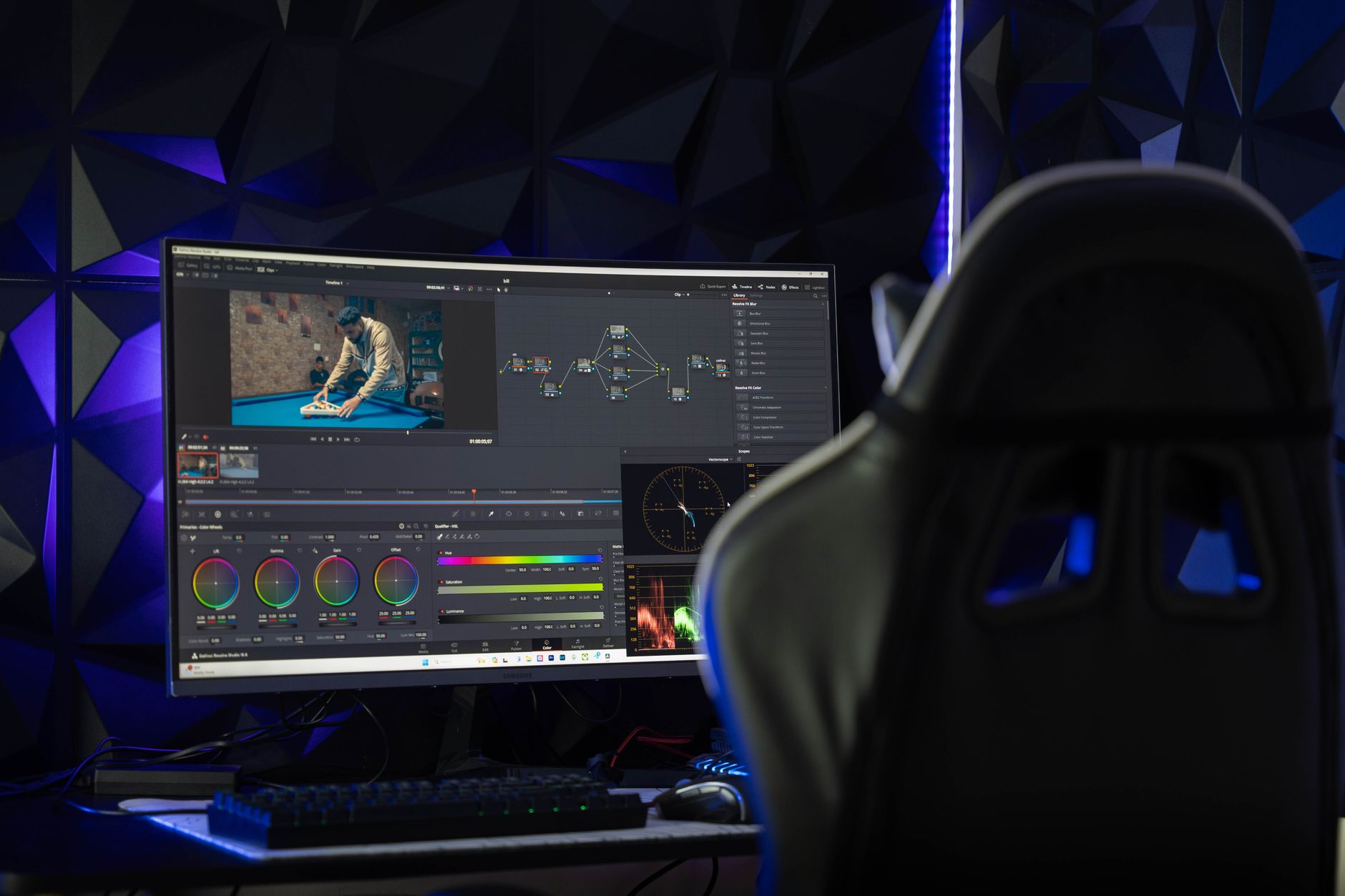
What makes CapCut particularly valuable is its complete suite of video enhancement tools. Beyond basic photo animation, you get text-to-speech functionality that can add narration to your videos, auto-captioning that generates subtitles automatically, and AI effects that apply dynamic visual elements. The “isolate voice” feature is especially useful if you’re combining your photo video with recorded narration, as it separates speech from background noise for clearer audio.
The workflow is straightforward: import your photos, select an AI animation style, adjust the duration and effects, then add any text overlays, transitions, or music. CapCut’s AI automates tasks like generating captions and creating short clips from text prompts, which speeds up the editing process considerably. While many of CapCut’s AI features are free, some advanced tools may require a Pro subscription, so check which features are available in the free tier before starting a complex project.
Next Level: Before uploading photos to any AI video tool, crop them to match your intended output format. Square crops work best for Instagram posts, while 9:16 vertical formats suit TikTok and Reels. This preparation ensures the AI applies motion effects to the most important parts of your image rather than animating empty space or cutting off key subjects during automated camera movements.
Adobe Firefly for High-Quality Animation
Adobe Firefly offers a specialized image-to-video tool that brings professional animation capabilities to static photos. The free online generator transforms still images into animated clips using generative AI that adds motion, camera effects, and cinematic styling. What sets Firefly apart is its ability to create videos up to 4K quality, making it suitable for projects where visual fidelity matters.
The Firefly tool analyzes your image to predict natural depth, lighting, and motion, then applies realistic camera movement and lighting effects to create an MP4 video clip. You can guide the animation by describing the type of motion you want, such as “slow zoom in” or “camera panning right across landscape,” and the AI interprets these instructions to generate appropriate movement. The system understands photographic composition well enough to avoid awkward motion that would break the illusion, like making buildings lean or faces distort unnaturally.
One advantage of using Adobe’s tool is the quality of the output files. The videos export cleanly without heavy compression artifacts, and the motion typically appears smooth rather than choppy. You can download the resulting clips and import them into other video editors for further refinement, or use them directly in presentations, social posts, or digital displays. The interface is browser-based, so there’s no software to install, though rendering times can vary depending on image complexity and server load.
Alternative Platforms Worth Exploring
Beyond the major players, several other platforms offer unique approaches to photo-to-video conversion. Canva, known for its design tools, has integrated AI video generation powered by Google’s Veo 3 technology. The system can turn text prompts into short video clips with synchronized audio, and these clips integrate directly into Canva designs for additional editing. You can add brand elements, text overlays, and resize the output for different social media platforms all within the same workspace. While Canva offers a free tier with basic Magic Media tools, the advanced Veo 3 powered video generator is primarily available to Pro users at $12.99 per month.
OpenShot represents a different approach entirely. This free, cross-platform video editor has incorporated AI-assisted editing workflows that run locally on your computer without requiring a subscription or cloud processing. The software’s AI-powered masks can isolate and follow subjects within video, which is useful when combining multiple animated photos into a cohesive sequence. OpenShot’s latest version lets you edit text directly on video and automate repetitive tasks using a command-line interface, making it a good choice if you’re creating multiple similar videos from different photo sets.
The advantage of desktop applications like OpenShot is that your files and edits stay on your machine, which matters if you’re working with private photos or need to maintain offline access to your projects. The trade-off is a steeper learning curve compared to the streamlined web-based tools.
Q&A
How long does it take to generate a video from photos using AI?
Processing time varies by platform and video length, but most AI tools generate short clips in one to five minutes. Simple animations of a single photo typically render in under a minute, while more complex projects with multiple images, custom effects, and music might take several minutes. Cloud-based tools depend on server availability, so rendering can be slower during peak usage times. Desktop applications like OpenShot process locally, which means speed depends on your computer’s hardware rather than internet connection.
Do I need any video editing experience to use these tools?
No prior editing experience is necessary for most AI photo-to-video tools. Platforms like CapCut and Adobe Firefly are designed with beginners in mind, offering automated options that handle all technical decisions. You simply upload your photo, choose a style or effect, and the AI generates a complete video. If you want more control, these tools also provide adjustment sliders and customization options, but you can achieve good results without touching any advanced settings. The learning curve is minimal compared to traditional video editing software.
What image formats and sizes work best?
Most AI video generators accept common image formats including JPG, PNG, and sometimes HEIC files from modern smartphones. Higher resolution photos generally produce better results, as the AI has more detail to work with when creating motion effects. Images around 1920×1080 pixels or larger tend to work well, though some tools can handle smaller photos by upscaling them. Avoid heavily compressed or very low-resolution images, as these can result in pixelated or blurry videos. Photos with clear subjects and good contrast typically animate better than images with complex or busy backgrounds.
Can I add my own music or voiceover to AI-generated videos?
Yes, virtually all AI video platforms let you add custom audio after the initial video is generated. Many tools, including CapCut, provide built-in music libraries with royalty-free tracks you can use without licensing concerns. You can also import your own audio files for background music or record voiceovers directly within the application. Some platforms offer text-to-speech features that convert written text into narration, which is useful for creating explainer videos or slideshows. Audio editing capabilities vary by tool, with some offering full mixing controls and others providing basic volume adjustment and trim functions.
For Conclusion
The ability to transform still photos into engaging videos has opened up creative possibilities that were once reserved for people with professional editing skills and expensive software. These free AI tools democratize video creation, letting anyone with a smartphone or computer bring their images to life with cinematic effects and smooth motion. Whether you’re creating content for social media, preserving family memories in a new format, or just exploring visual storytelling, these platforms provide accessible entry points.
The technology continues to improve rapidly, with each generation of AI models producing more realistic motion and better understanding of photographic depth and composition. While the results may not yet match what a skilled human editor can achieve with traditional tools, they’re more than sufficient for most personal and casual business uses. The key is choosing the right tool for your specific needs: quick mobile editing with CapCut, high-quality output with Adobe Firefly, or full creative control with desktop software like OpenShot. Start with your existing photos, experiment with different effects and styles, and you’ll quickly discover which approach works best for your creative vision.