
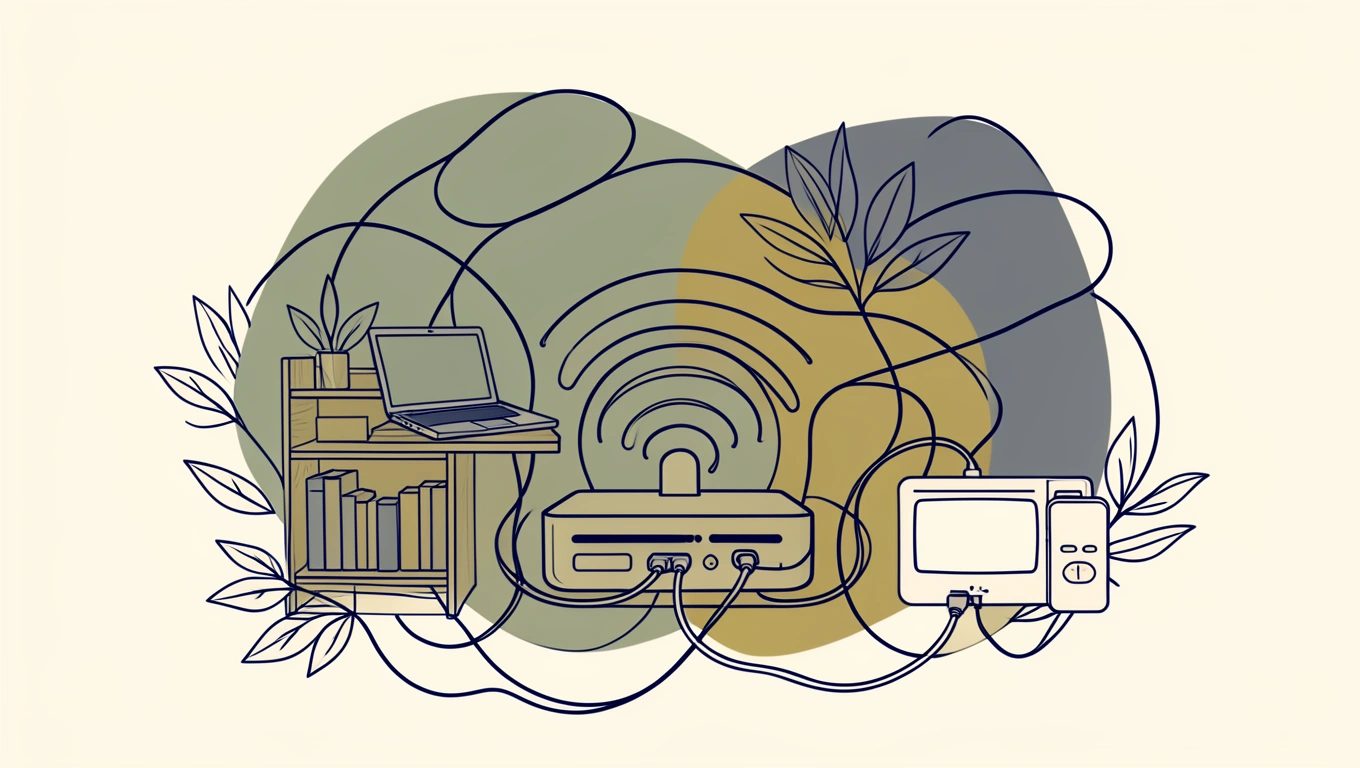
Slow Wi-Fi is one of those everyday frustrations that can turn a simple task into a test of patience. Whether you’re trying to stream a movie, join a video call, or just browse the web, a sluggish connection disrupts everything. The good news is that you don’t need to spend money on new equipment to see real improvements. With a few smart adjustments to your existing setup, you can often boost your Wi-Fi speed significantly. These tweaks take advantage of how your router works and how signals travel through your home, giving you better performance without opening your wallet.
Position Your Router for Maximum Coverage
Where you place your router makes a huge difference in how well your Wi-Fi performs throughout your home. Many people tuck their router away in a closet, behind furniture, or in a corner of the house, but this limits signal strength and creates dead zones. Wi-Fi signals radiate outward in all directions, so the best spot is typically a central location on the main floor of your home, elevated off the ground.
Think about placing your router on a shelf or mounting it on a wall rather than leaving it on the floor. Walls, especially those made of brick or concrete, can block signals, as can large metal objects like filing cabinets or appliances. Keep your router away from these obstructions and away from other electronics that might cause interference, such as microwaves, baby monitors, and cordless phones. Even fish tanks can interfere with Wi-Fi signals because water absorbs radio waves.
If your home has multiple floors, try placing the router on the middle floor if possible. This helps distribute the signal more evenly upward and downward. If you live in a long, narrow home, placing the router closer to the center of that layout rather than at one end can help ensure coverage reaches all rooms. These simple positioning changes often deliver noticeable speed improvements without any cost.
Update Your Router’s Firmware
Router manufacturers regularly release firmware updates that can improve performance, fix bugs, and patch security vulnerabilities. Many people never update their router’s firmware because they don’t realize it needs updating or they don’t know how. This simple step can sometimes result in better speed and more stable connections.
To update your firmware, you’ll need to access your router’s admin interface. You can usually do this by typing your router’s IP address into a web browser. Common addresses include 192.168.1.1 or 192.168.0.1, but you can find the exact address in your router’s manual or on a sticker on the router itself. Once logged in, look for a section labeled “Firmware Update,” “Software Update,” or something similar. The Federal Communications Commission offers guidance on home network optimization that includes firmware update best practices.
Some newer routers update automatically, but many older models require you to check manually. If an update is available, follow the on-screen instructions to install it. The process usually takes just a few minutes, and your router may restart automatically. Make sure not to unplug the router during the update, as this can cause problems. Keeping your firmware current ensures you’re getting the best performance your router can deliver.
Next Level: Change your router’s broadcast channel to avoid interference from nearby networks. Most routers default to channels 1, 6, or 11, which can become crowded in apartment buildings or dense neighborhoods. Access your router settings and use a Wi-Fi analyzer app on your phone to see which channels your neighbors are using, then switch to a less congested one for clearer signals and faster speeds.
Manage Your Connected Devices
Every device connected to your Wi-Fi competes for bandwidth, and some devices hog more than others. Streaming video, online gaming, and large downloads all consume significant bandwidth, which can slow down everything else on your network. Taking control of what’s connected and when can free up speed for the devices and activities that matter most to you.
Start by disconnecting devices you’re not actively using. Smart home gadgets, tablets, old phones, and guest devices can all stay connected even when idle, taking up small amounts of bandwidth and network resources. Go through your router’s connected devices list and remove anything you don’t recognize or no longer use. You can usually find this list in your router’s admin interface under a section called “Connected Devices” or “Device List.”
For devices that need the most reliable connection, like your work computer or gaming console, using a wired Ethernet connection can free up Wi-Fi bandwidth for your mobile devices. Wired connections are almost always faster and more stable than wireless, so if you can plug in devices that stay in one place, you’ll improve the wireless experience for everything else.
Many routers also offer Quality of Service (QoS) settings that let you prioritize certain types of traffic or specific devices. If you’re in an important video call, you can set your router to give priority to your laptop over someone else’s streaming service. Check your router settings for QoS options and experiment with prioritizing your most critical activities.
Switch to a Less Crowded Channel and Band
Your Wi-Fi router broadcasts on specific channels, similar to how radio stations use different frequencies. In crowded areas like apartment buildings, multiple routers may be competing on the same channel, causing interference and slower speeds. Switching to a less crowded channel can dramatically improve your connection quality.
Most routers operate on two frequency bands: 2.4 GHz and 5 GHz. The 2.4 GHz band has better range and can penetrate walls more easily, but it’s also more crowded because many devices use it, including Bluetooth gadgets and microwaves. The 5 GHz band offers faster speeds and less interference but doesn’t travel as far. If your router supports both bands, try connecting your nearby devices to the 5 GHz network and use 2.4 GHz for devices farther away.
To change your channel, log into your router’s admin interface and look for the wireless settings section. You’ll see options for both 2.4 GHz and 5 GHz channels. For the 2.4 GHz band, channels 1, 6, and 11 are usually recommended because they don’t overlap with each other. For 5 GHz, there are many more channels available with less congestion. Some routers have an “Auto” setting that picks the best channel, but manually selecting one based on what your neighbors aren’t using often works better.
You can use free Wi-Fi analyzer apps on your smartphone to see which channels nearby networks are using. This helps you identify the least crowded option. After changing channels, test your speed to see if performance improves. Sometimes a simple channel switch is all you need to go from frustratingly slow to perfectly fast.
Q&A
How often should I restart my router to maintain good speeds?
Restarting your router once a month can help clear its memory and resolve minor software glitches that slow down performance. Simply unplug the router, wait about 30 seconds, then plug it back in. This quick reset often fixes connection issues and can restore speed if things have gotten sluggish. If you notice frequent slowdowns, you might need to restart more often or investigate other issues like firmware updates or interference.
Can too many devices slow down my Wi-Fi even if they’re not being used?
Yes, even idle devices can slow down your network. Each connected device takes up a small portion of your router’s processing power and maintains an active connection that uses network resources. Background updates, cloud syncing, and automatic app refreshes happen without you noticing. Disconnecting devices you’re not actively using, especially older ones that might not sleep properly, can free up bandwidth and improve speeds for the devices you do use.
Does hiding my Wi-Fi network name improve speed or security?
Hiding your network name, also called the SSID, doesn’t improve speed and offers minimal security benefits. It might stop casual neighbors from seeing your network, but it won’t stop anyone determined to access it. In fact, hidden networks can sometimes cause connection issues with certain devices. For better security without affecting speed, use a strong password with WPA3 or WPA2 encryption instead of hiding your network name.
Why is my Wi-Fi slower at certain times of day?
Your Wi-Fi might slow down during peak usage times when more people in your household are online or when your internet service provider experiences heavy traffic in your area. If multiple family members are streaming, gaming, or on video calls simultaneously, you’re dividing your total bandwidth among all those activities. Switching devices to a wired connection, scheduling large downloads for off-peak hours, or using QoS settings to prioritize important traffic can help manage congestion during busy times.
For Conclusion
Faster Wi-Fi doesn’t always require new hardware or expensive upgrades. By making smart adjustments to your router’s position, keeping firmware updated, managing connected devices, and optimizing your channel settings, you can often see significant improvements in speed and reliability. These free changes work with what you already have, helping you get the most out of your existing equipment.
The key is understanding that Wi-Fi signals are affected by physical obstacles, interference from other networks and devices, and how your router distributes its resources. When you address these factors systematically, you create better conditions for strong, fast connections throughout your home. Start with the easiest changes, like repositioning your router or restarting it regularly, then move on to more detailed adjustments like channel optimization if needed.
Not every home will see dramatic improvements from these steps, especially if your internet plan itself is slow or your router is very old. But for most people, these no-cost tweaks deliver noticeably better performance and help you avoid the frustration of buffering videos and dropped connections. Give your current setup every chance to succeed before deciding you need new gear. You might be surprised by how much faster your Wi-Fi can be with just a few thoughtful changes.